2 Jan 2026
Post by Gabriel
Introduction
Running out of storage on your MacBook is a common challenge, whether you’re handling large creative projects or storing an ever-growing personal media library. It’s crucial to find efficient storage solutions to keep your MacBook running smoothly. Fortunately, from internal upgrades to external and cloud-based options, there are many ways to maximize your storage capacity. In this article, we’ll explore multiple methods to extend your MacBook’s storage, so you can choose the best option for your needs.

Understanding MacBook Storage Options
Knowing the differences among storage options is essential for deciding on an upgrade path. Typically, MacBooks use Solid-State Drives (SSDs) for their speed and reliability compared to traditional Hard Disk Drives (HDDs).
-
Types of Storage in MacBooks: MacBooks are equipped with SSDs—known for superior speed and durability over HDDs—which helps in managing intensive tasks efficiently.
-
Identifying Your MacBook’s Storage Capacity: To assess current storage, go to the Apple menu, click ‘About This Mac,’ then ‘Storage’ to view your available space and file distribution.
Whether you understand these limitations or not, internal storage upgrades provide a solid starting point for significant enhancement of your MacBook.
Upgrading Internal Storage
If you feel confident with a bit of DIY tech work, an internal SSD upgrade can be an effective route. This option comes with added complexity, but it rewards you with increased speed and capacity.
-
Checking Upgrade Eligibility: Begin by determining if your MacBook model supports an SSD upgrade. While older models typically allow for more accessible upgrades, newer ones often have soldered storage.
-
Recommended SSDs for 2024: Brands like Samsung and Crucial offer top-performance SSDs compatible with many MacBooks, providing a range of speeds and sizes.
-
Step-by-Step Upgrade Guide: Back up your data first, then gather necessary tools. Find a reliable tutorial specific to your MacBook model. Carefully replace the old SSD with the new one and restore your backed-up data.
Following this internal method, external storage solutions offer flexibility and ease, while being suitable for users who might not want to open their MacBooks.

External Storage Solutions
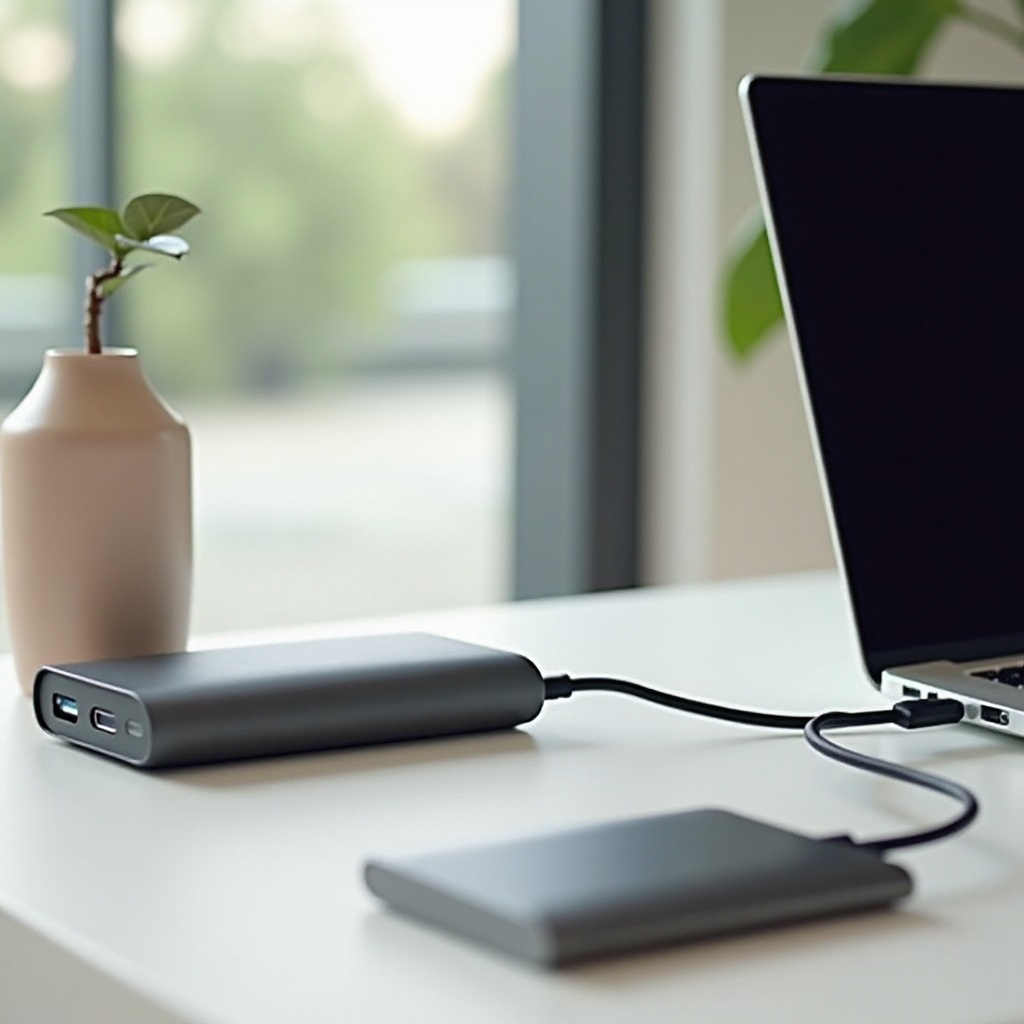
External storage is a powerful solution offering portability and ease of use. These drives expand your space without altering the internal components of your MacBook.
-
Choosing the Right External Drive in 2024: Balance factors such as portability, speed, and budget when selecting an external drive. SSDs offer compactness and high speed, whereas HDDs provide larger capacities at a lower cost.
-
Benefits of SSDs vs. HDDs: SSDs are fast, reliable, and quiet, perfect for mobility. Meanwhile, HDDs serve well for bulk storage needs due to their cost-effectiveness.
-
Setting Up and Using External Drives: Simply connect the drive via USB or Thunderbolt. Ensure it’s formatted correctly for macOS, then start transferring files to free up your internal storage.
For users who prefer not to rely solely on physical hardware, cloud storage emerges as a compelling, space-saving alternative.
Cloud Storage: A Flexible Alternative
Cloud storage serves as a digital extension of your MacBook, offering extra space and easy access from any location with internet connectivity.
-
Top Cloud Storage Services in 2024: Services such as iCloud, Dropbox, Google Drive, and OneDrive offer a wide range of plans. They allow you to store, access, and share files seamlessly.
-
Pros and Cons of Cloud Storage: While cloud storage provides accessibility and easy sharing, it relies on internet connectivity and potentially incurs subscription fees.
-
Efficient File Management in the Cloud: Organize your data effectively by evaluating files that must be offline versus those that can reside in the cloud. Service-specific applications can help manage and streamline this process.
Using software tools in combination with these storage strategies can further optimize how you manage your MacBook space and keep it running efficiently.
Optimizing Storage Space with Software
Enhancing storage through software not only improves performance but also makes it easier to manage your files and free up space regularly.
-
Using macOS Optimized Storage: The macOS comes with built-in tools like Optimized Storage that can help manage and clear space automatically, identifying potential files for removal.
-
Recommended Storage Management Apps: Applications like CleanMyMac or DaisyDisk offer more intricate cleaning and space management options to help maintain storage.
-
Regular Maintenance and Backup Strategies: Regularly backing up your data can prevent loss and ensure consistent operation. Use Apple’s Time Machine or other reliable methods to keep your system secure and organized.
A strategic combination of these approaches will maximize your storage capabilities and improve your device’s efficiency.
Conclusion
From internal upgrades to leveraging external and cloud solutions, multiple approaches can effectively expand your MacBook’s storage. By assessing your needs and selecting the right combination of these methods, you can ensure your MacBook remains a powerful, efficient tool in your everyday life.
Frequently Asked Questions
How do I check the available storage on my MacBook?
Navigate to the Apple menu, select ‘About This Mac,’ and click ‘Storage’ to view your detailed storage stats.
Can adding external storage affect my MacBook’s performance?
External storage generally enhances performance by freeing up internal space, especially when using high-speed SSDs.
Is it safe to rely entirely on cloud storage for my files?
While secure, it’s wise to keep local backups of critical data for access during offline situations or network outages.