9 Jan 2026
Post by Gabriel
Introduction
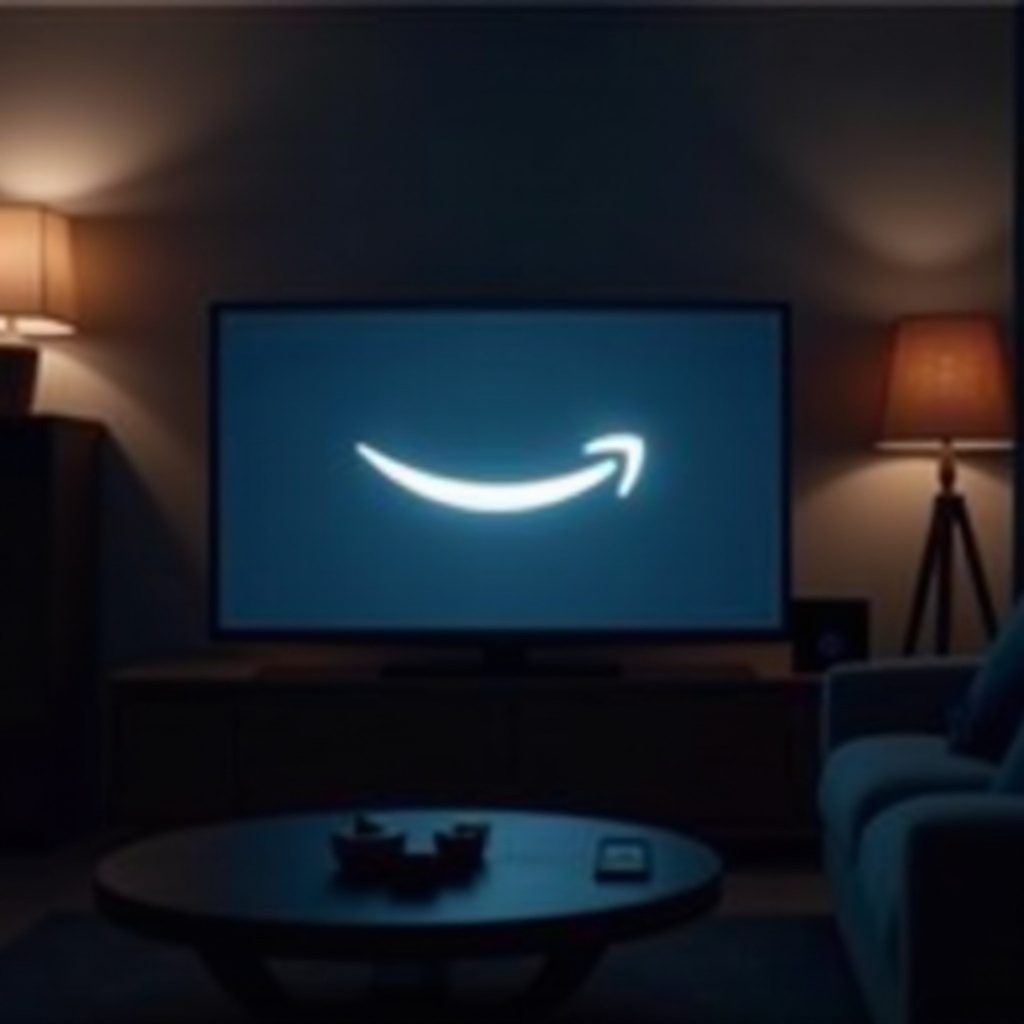
The Amazon Fire Stick transforms any TV into a smart TV, delivering endless streaming options. But issues like the device getting stuck on the Amazon logo can disrupt your entertainment. This problem is annoying but often solvable with the correct steps. This article will guide you through the necessary actions to get your Fire Stick running smoothly again.
Understanding the Amazon Logo Freeze
Before diving into solutions, it’s important to recognize what a frozen Amazon logo implies. This issue could stem from various factors, such as a recent update glitch, faulty connections, or internal software problems. Correctly identifying the triggering cause is essential to apply the right fix.
Immediate Solutions to Try
You can start with some quick fixes that often solve many minor issues:
- Check Connections: Make sure the Fire Stick is securely connected to the HDMI port and power source. Sometimes, simply reseating these connections can resolve the issue.
- Restart the Device: Unplug the Fire Stick, wait for 30 seconds, then plug it back in. This basic step can clear small glitches and reset the device.
- Try a Different HDMI Port: Switching to another HDMI port might resolve port-specific issues. If the Fire Stick works on another port, it could indicate a problem with the original one.
If these quick solutions don’t solve the problem, you can proceed to more advanced steps.
Advanced Troubleshooting Steps
For persistent logo freeze issues, consider these more detailed troubleshooting actions:
- Factory Reset the Fire Stick: Perform a factory reset if basic fixes fail. Hold the ‘Back’ and ‘Right’ buttons on your remote for about 10 seconds and follow the on-screen instructions to reset.
- Update the Software: Ensure your device’s software is up-to-date. Navigate to Settings > My Fire TV > About > Check for Updates to install the latest version.
- Stable Internet Connection: Double-check your internet signal. Streaming requires reliable internet, and a weak connection can cause freeze issues.
If your efforts here succeed, your Fire Stick should boot past the logo screen and into the home interface. For sustained performance improvements, it’s crucial to look at some preventative measures.
Ensuring Long-term Fire Stick Performance
Once your device is back to normal operations, taking preventive actions can avoid recurrence. Here are a few recommendations to maintain long-term performance:
- Keep Software Updated: Updates often fix bugs. Enable automatic updates to ensure your device is always running the latest software.
- Prevent Overheating: Ensure your Fire Stick is well-ventilated. Avoid placing it in small spaces where heat can accumulate.
- Use Quality Accessories: Investing in a high-quality HDMI cable and power adapter can enhance performance and reduce potential issues.
By following these tips, you reinforce the device’s durability and enjoy seamless streaming. However, there are situations when professional help is warranted.
When to Seek Professional Help
When the basic and advanced troubleshooting doesn’t resolve the problem, contacting Amazon Support is advisable. Their team can guide you through further diagnostics, offer additional solutions, or handle necessary repairs.
Professional support ensures any hidden hardware or software issues are addressed effectively. This path saves you time and provides peace of mind, knowing that tech experts assist your device.
Conclusion
Addressing the Fire Stick stuck on the Amazon logo issue can often be resolved by following the outlined steps. From checking connections to seeking professional support, taking measured actions helps keep your entertainment device working. Once resolved, you can resume enjoying your favorite shows and movies without interruption.
Frequently Asked Questions
Can a weak internet connection cause my Fire Stick to freeze?
Yes, a poor internet connection can cause interruptions and potentially freeze your Fire Stick at the Amazon logo. Ensuring a stable and robust connection is vital for smooth operation.
How often should I update my Fire Stick software?
Keep your Fire Stick software updated regularly. Enable automatic updates for a seamless process, ensuring any bugs are promptly addressed.
What should I do if the reset doesn’t fix the issue?
If resetting doesn’t resolve the problem, consider contacting Amazon Support for further assistance. Detailed guidance and potential repairs may be necessary.