23 Jan 2026
Post by Gabriel
Introduction
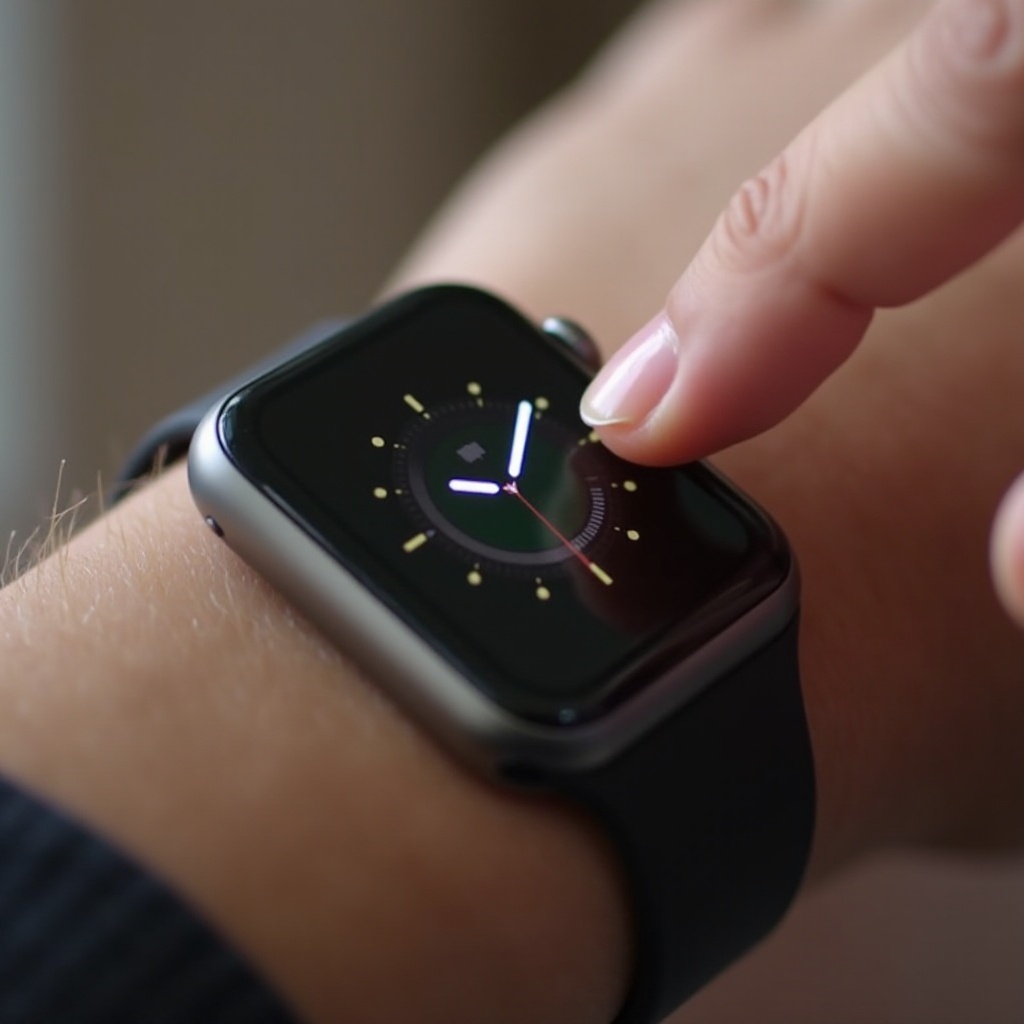
As an Apple Watch user, the seamless interaction via the touchscreen is one of its most appealing features. However, when you encounter issues like the inability to swipe up, it can be a source of frustration. The swipe-up gesture is crucial for accessing the Control Center, offering quick access to important settings such as Wi-Fi, battery status, and Bluetooth. Understanding this problem and knowing the solutions will help maintain your device’s efficiency.
Understanding the Swipe-Up Functionality
The swipe-up feature is integral to Apple Watch’s user experience, providing quick access to multiple settings in the Control Center. This gesture is essential for daily operations, ensuring you can modify settings rapidly and boost your productivity. Before diving into solutions, it’s essential to appreciate the significance of this gesture and why resolving its malfunctions promptly is vital.
Common Reasons Why Your Apple Watch Won’t Swipe Up
Identifying potential causes of swipe-up failures is the first step in finding a solution. Here are common reasons for this issue:
– Software Glitches: Temporary bugs can impede touchscreen responsiveness.
– Physical Obstructions: Dirt, debris, or an ill-fitted screen protector might obstruct touch gestures.
– Hardware Failures: Occasionally, the internal hardware might be the culprit, affecting the screen’s ability to register touches.
By understanding these causes, you can troubleshoot effectively and apply suitable solutions outlined in the following sections.
Basic Troubleshooting Steps
For immediate results, initiate these basic troubleshooting steps:
– Clean Your Screen: Use a microfiber cloth to eliminate dirt or oils from the screen that might affect touch functionality.
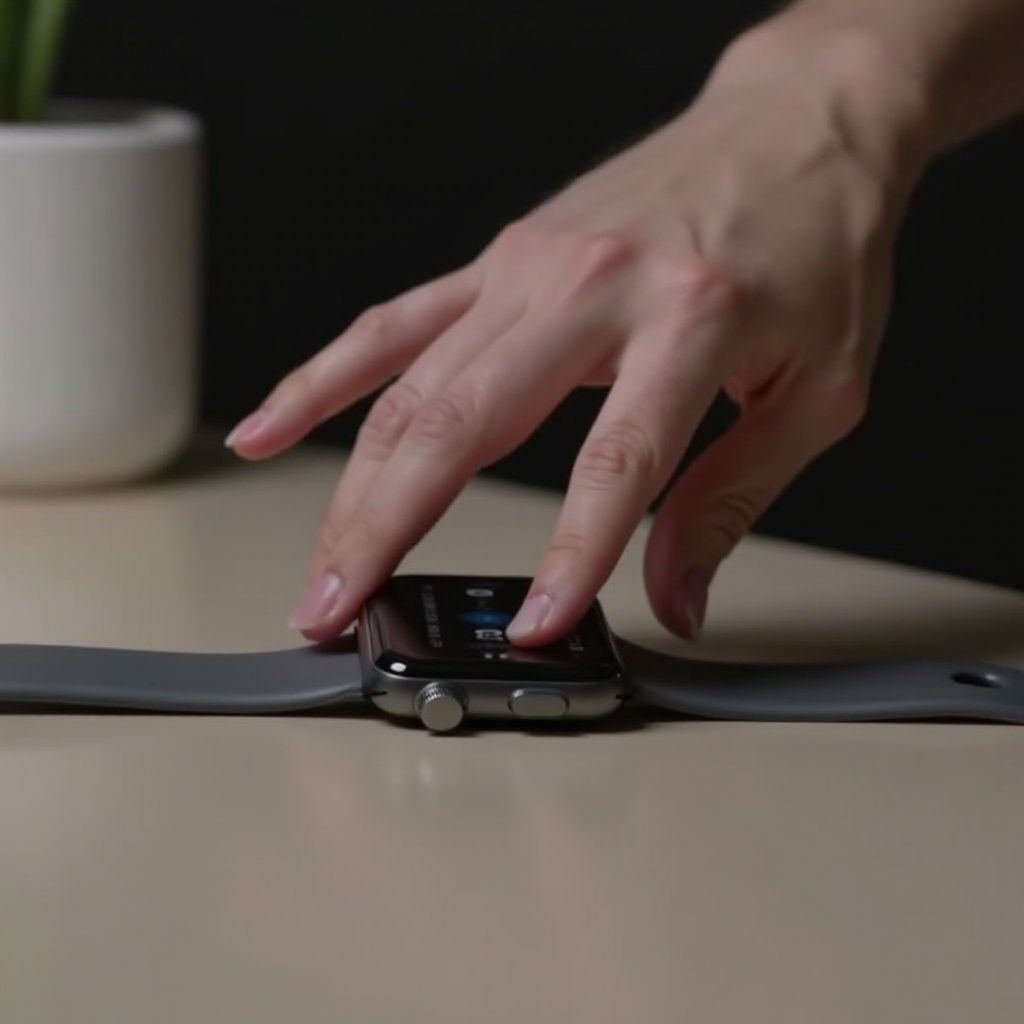
– Restart the Apple Watch: Restarting can resolve temporary glitches. Simply press and hold the side button until the Power Off slider appears, then drag it to shut down.
– Check Screen Protectors: Ensure that any protector or case isn’t interfering with the screen’s sensitivity.
If these efforts do not resolve the issue, more advanced steps will be necessary.
Advanced Troubleshooting Steps
When basic steps are ineffective, advanced troubleshooting is essential:
- Update WatchOS:
-
Outdated software can cause issues. Check for updates by opening the Apple Watch app on your iPhone and navigating to My Watch > General > Software Update.
-
Reset All Settings:
-
Resetting can resolve configuration issues without erasing your data. Go to Settings > General > Reset > Reset All Settings on your watch.
-
Unpair and Re-pair:
- Unpairing and then re-pairing your device can resolve persistent issues. Open the Apple Watch app on your iPhone, go to My Watch > All Watches, tap the ‘i’ next to your current watch, and select Unpair Apple Watch.
These solutions ensure that both software and settings are optimized for seamless swipe functionality, preparing your watch for continued use.
When to Seek Professional Help
If these troubleshooting steps don’t solve the issue, professional help might be necessary. Consider contacting Apple Support in cases of:
– Persistent operational issues despite troubleshooting.
– Visible damage to the watch screen or body.
– Under-warranty device for repairs.
Prepare for a store visit by backing up your data and scheduling a Genius Bar appointment to ensure quick and effective support.
Alternative Ways to Access Features
While you work on restoring swipe functionality, here are alternative methods to access key features:
– Use Siri: Enable settings or execute tasks via voice using Siri by pressing and holding the Digital Crown.
– iPhone App: Access some Control Center features through the Apple Watch app, facilitating continued device utilization.
These alternatives ensure you maintain the productivity and functionality of your device as you work on resolving swipe issues.
Conclusion
Addressing swipe-up issues on your Apple Watch involves understanding possible causes and a thorough application of troubleshooting measures. From cleaning the screen to advanced settings adjustments, these methods contribute to restoring your watch’s functionality. Stay informed and equipped to handle such challenges, ensuring your device supports your lifestyle efficiently.
Frequently Asked Questions
Why does my Apple Watch intermittently stop responding to swipe gestures?
Temporary software glitches or dirt on the screen could cause intermittent issues. Restart your watch and verify it is clean.
Can screen protectors affect swipe responsiveness on Apple Watch?
Yes, screen protectors might impair touch sensitivity if improperly applied. Temporarily removing it could help identify the issue.
Is it possible to fix hardware issues at home?
Hardware issues typically require professional repair. If damage is suspected, contacting Apple Support is advised.