30 Jan 2026
Post by Gabriel
Introduction
Connecting your laptop to a monitor using an HDMI cord can significantly enhance your productivity by providing an expanded workspace. This setup is ideal for multitasking, giving presentations, or enjoying media content on a larger screen. Whether you need a dual monitor setup for work or a temporary connection for presentations, understanding how to do it efficiently is essential.
Understanding HDMI Technology
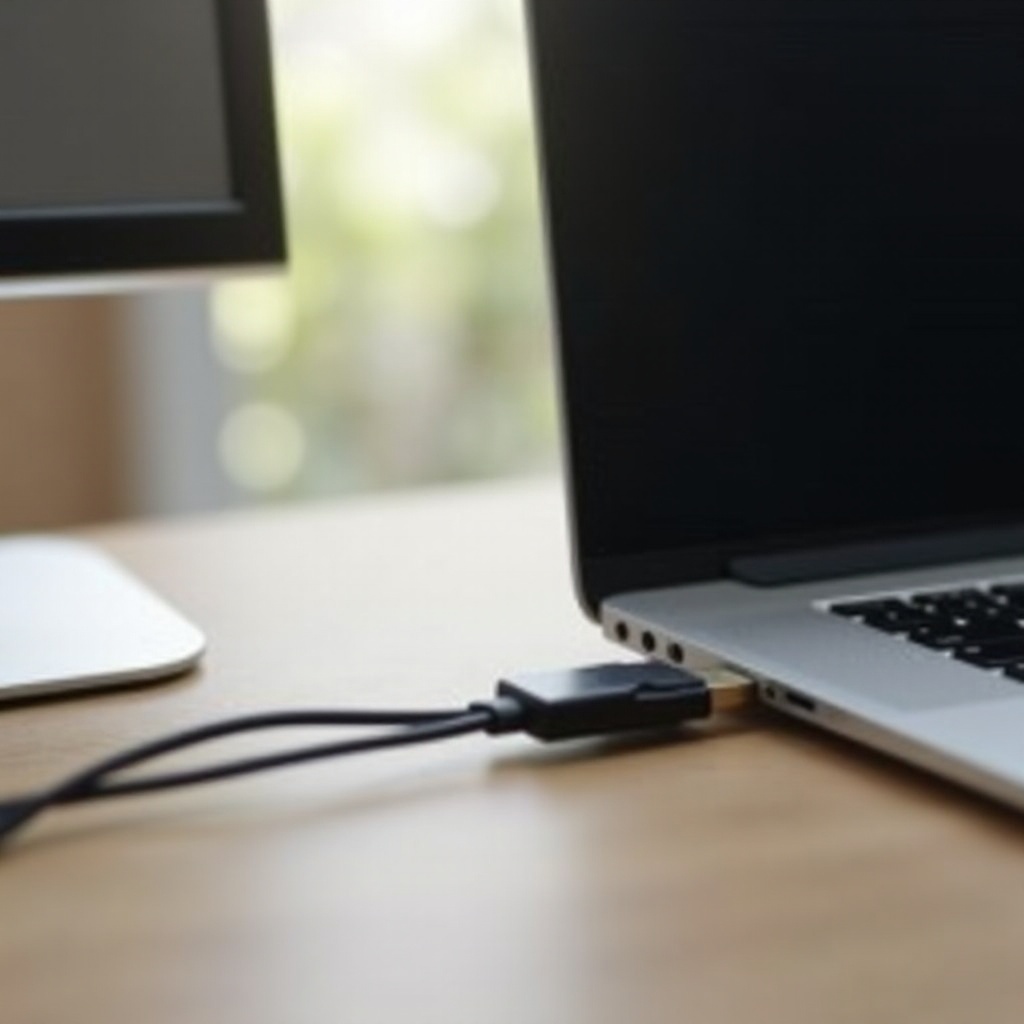
When setting up your HDMI connection, it’s important to understand the basics of HDMI technology. HDMI, or High-Definition Multimedia Interface, is a widely used interface for transmitting high-quality audio and video signals digitally. This technology is prevalent in modern monitors, TVs, and laptops.
Different types of HDMI cables, such as Standard, Mini, and Micro, cater to various devices. Most laptops and monitors use Standard HDMI cables. However, Mini and Micro HDMI cables might be required for smaller devices like tablets and cameras. HDMI 2.1 is the latest version, offering enhanced features like higher resolution and improved audio, making it ideal for high-performance setups.
Preparing Your Devices
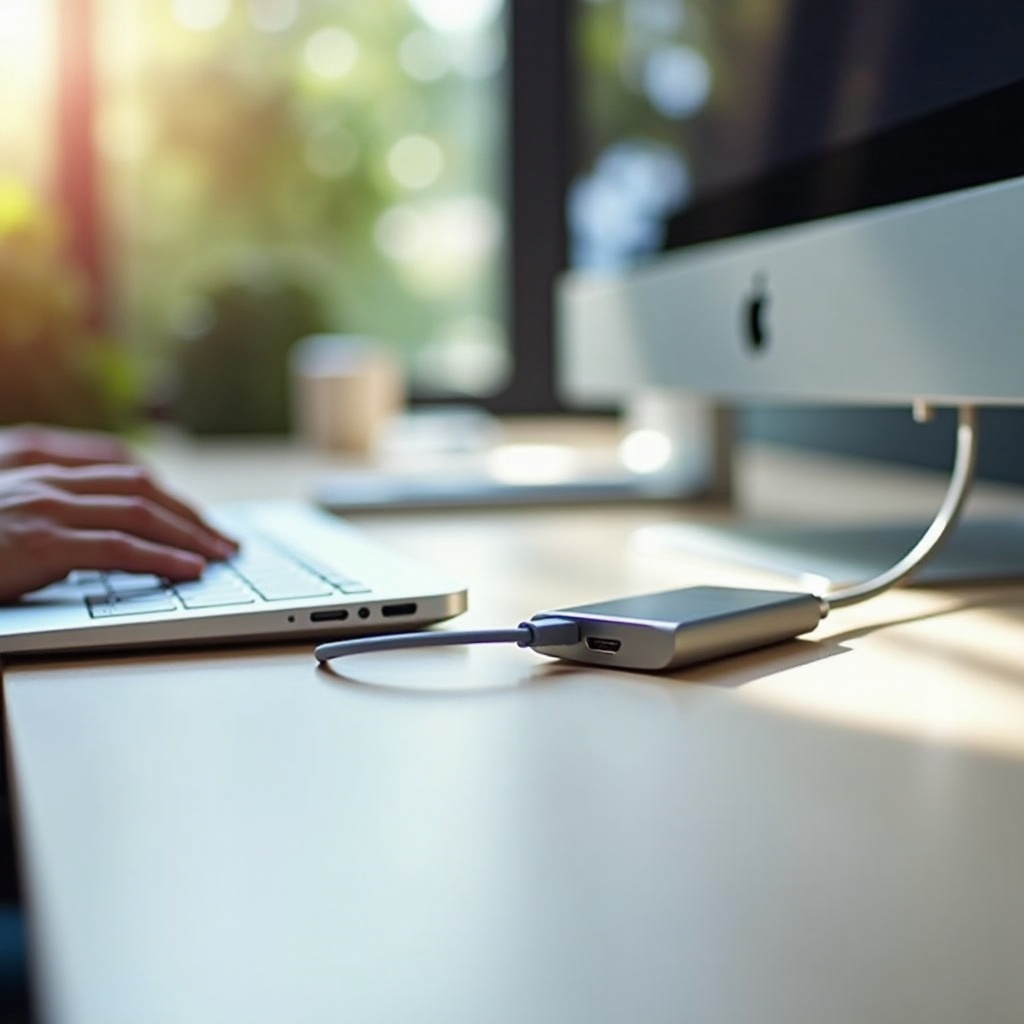
Before you connect, you need to prepare your devices properly. Start by checking the ports on your laptop and monitor. Modern laptops and monitors are typically equipped with HDMI ports, but if yours are not, you may need an adapter.
After confirming compatibility, choose the right HDMI cord in terms of length and quality. A longer cord provides flexibility in arranging your setup, ensuring high-definition signals are transmitted without interference.
Step-by-Step Connection Guide
Here’s how to connect your devices using an HDMI cable:
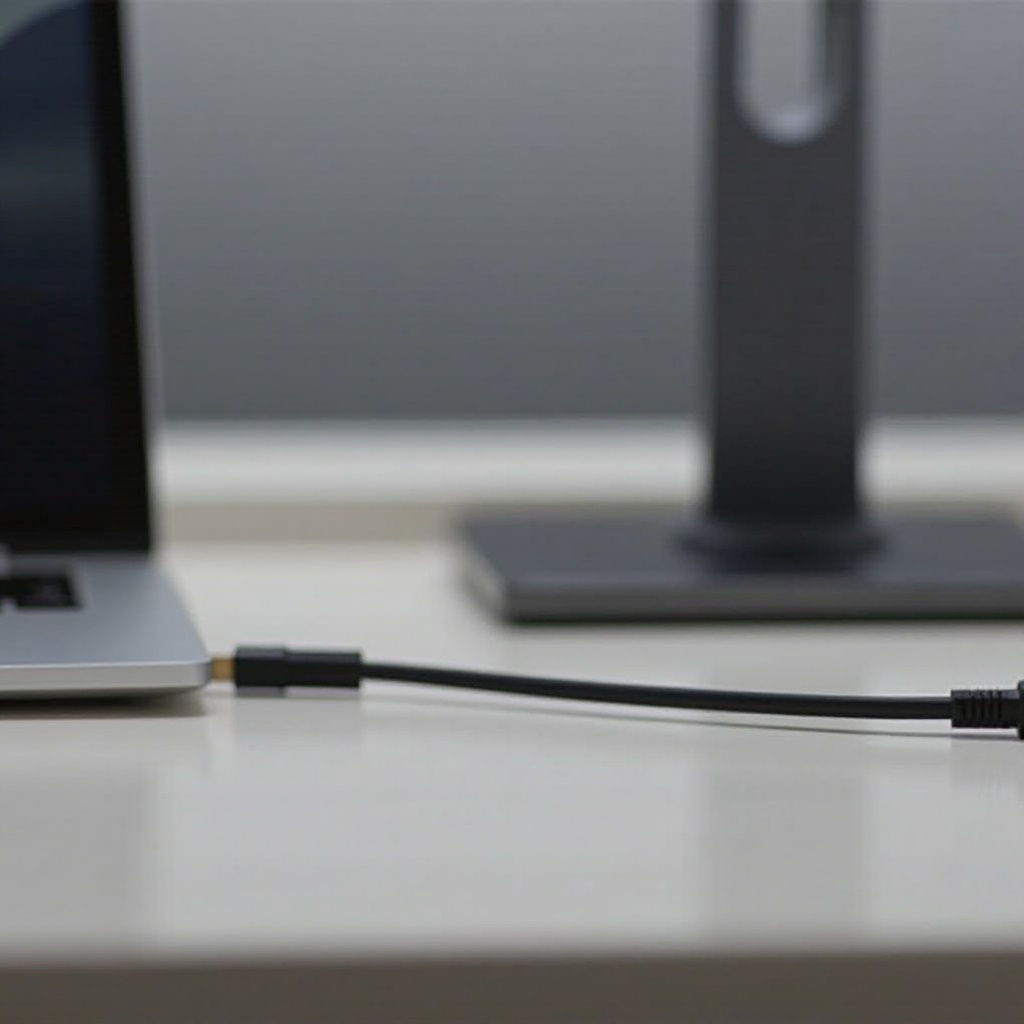
- Connect one end of the HDMI cable to your laptop and the other to your monitor.
- For Windows laptops: Once connected, your laptop usually detects the monitor automatically. If not, press ‘Windows Key + P’ to open the Project menu and select your display mode: Duplicate, Extend, or Second Screen Only.
- For MacBooks: Go to ‘System Preferences’, select ‘Displays’, and click on ‘Arrangement’. You can choose to mirror your display or extend your desktop.
Following these steps will help you leverage the extra screen space efficiently.
Troubleshooting Common Issues
Even with a proper setup, issues can arise. Here’s how to resolve common problems:
- No Signal on Monitor: Check that the HDMI cable is securely connected to both ports and that the monitor is set to the correct input source.
- Image Quality Problems: Ensure the resolution settings are optimal for both displays by accessing your computer’s display settings.
- Audio Issues: If there’s no sound, go to your laptop’s audio settings to set the HDMI device as the default playback option.
These troubleshooting tips should resolve most connection issues, allowing you to benefit from a dual monitor setup.
Tips for Optimizing Dual Monitor Setup
To make the most of your dual monitor setup, consider these optimization tips:
- Adjust Resolution and Refresh Rate: Ensure both screens function optimally by adjusting their resolution and refresh rates in the display settings, which affects visual performance.
- Position Monitors Comfortably: Set your monitors at eye level to prevent neck strain and increase productivity during long work sessions.
- Manage Multiple Displays: Use features like split-screen, label panes, or assign specific apps to different screens for an organized workspace.
Implementing these tips will enhance your efficiency and comfort while working with multiple displays.
Conclusion
Connecting your laptop to a monitor with an HDMI cord is a straightforward way to maximize your work potential. By choosing the right cable, setting up your devices correctly, and resolving potential issues promptly, you can create a productive and seamless workspace.
Frequently Asked Questions
How do I know if my laptop supports HDMI output?
Most laptops have an HDMI port on the side or back. Check your laptop’s specifications or look for the HDMI label.
Can I use a USB to HDMI adapter if my laptop lacks an HDMI port?
Yes, USB to HDMI adapters are available for laptops without HDMI ports, allowing you to connect to an external monitor.
What should I do if my laptop doesn’t detect the monitor?
Ensure the HDMI cable is connected properly and check the display settings. Update your graphics drivers or restart both devices if needed.