16 Oct 2026
Post by Gabriel
Introduction
Screensavers on your Mac are more than just a trivial feature; they are an extension of your personality and style. Display cherished photos, dynamic designs, or soothing patterns that define your preferences. Changing your Mac screensaver is a simple yet gratifying process, allowing you to infuse a personal touch to your workspace. This guide will walk you through the steps needed to customize your Mac screensaver. Ready to transform your desktop with a new screensaver? Let’s dive into the steps and explore the creative potential of this often-underutilized feature.
Understanding Mac Screensaver Basics
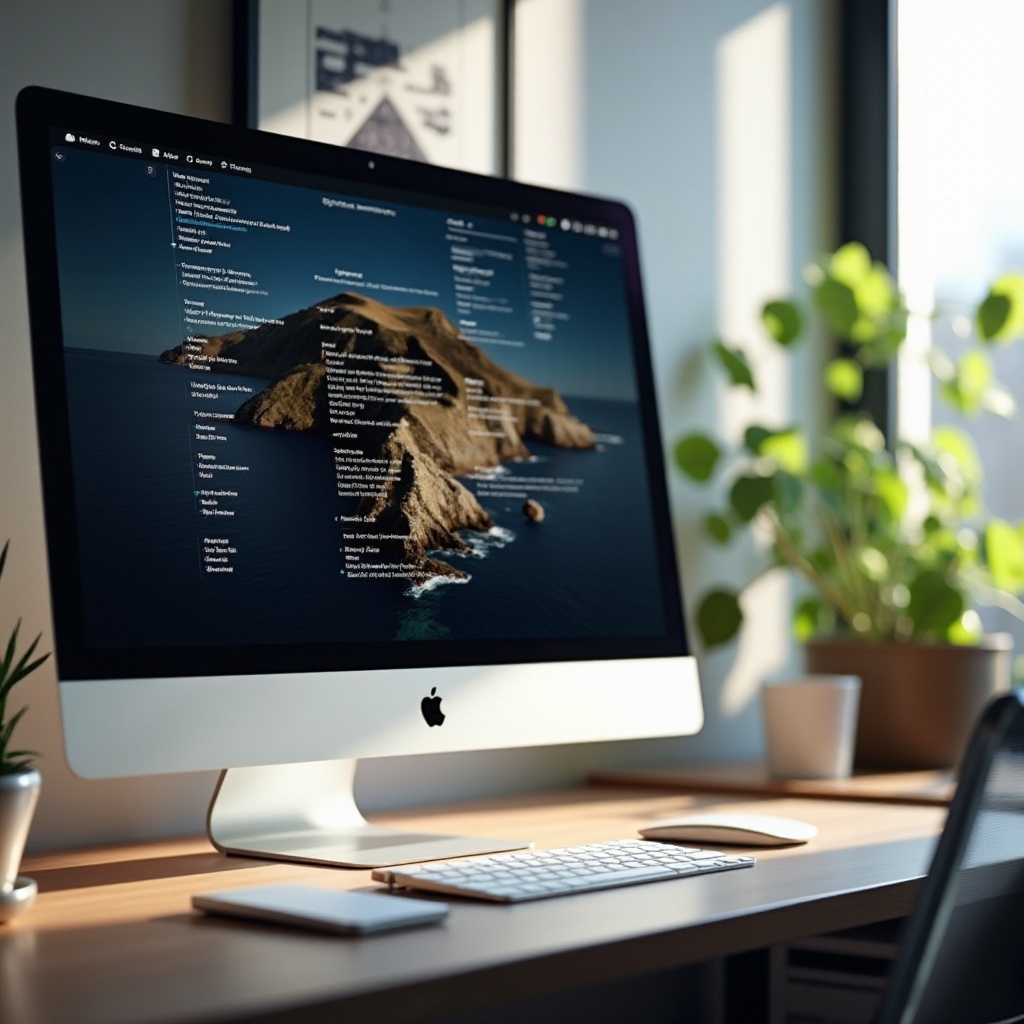
Customizing your Mac screensaver offers both aesthetic and functional benefits. Screensavers are designed not only to delight the eyes but also to safeguard your screen from burn-in. By personalizing it, you enhance not just your Mac’s appearance but its functionality as well.
Importance of Customizing Your Screensaver
Your screensaver can express who you are or even align with your professional image. It might display favorite memories, serene landscapes, or inspirational quotes that motivate you throughout the day.
Default vs. Custom Screensavers
Macs come equipped with a range of default screensavers that vary from abstract art to beautiful landscapes. However, custom screensavers allow for the use of personal photos, turning your Mac into a canvas that represents your individuality.
Understanding these fundamentals sets a strong foundation for customizing your experience. Let’s move on to how to change these settings.
Navigating to Screensaver Settings
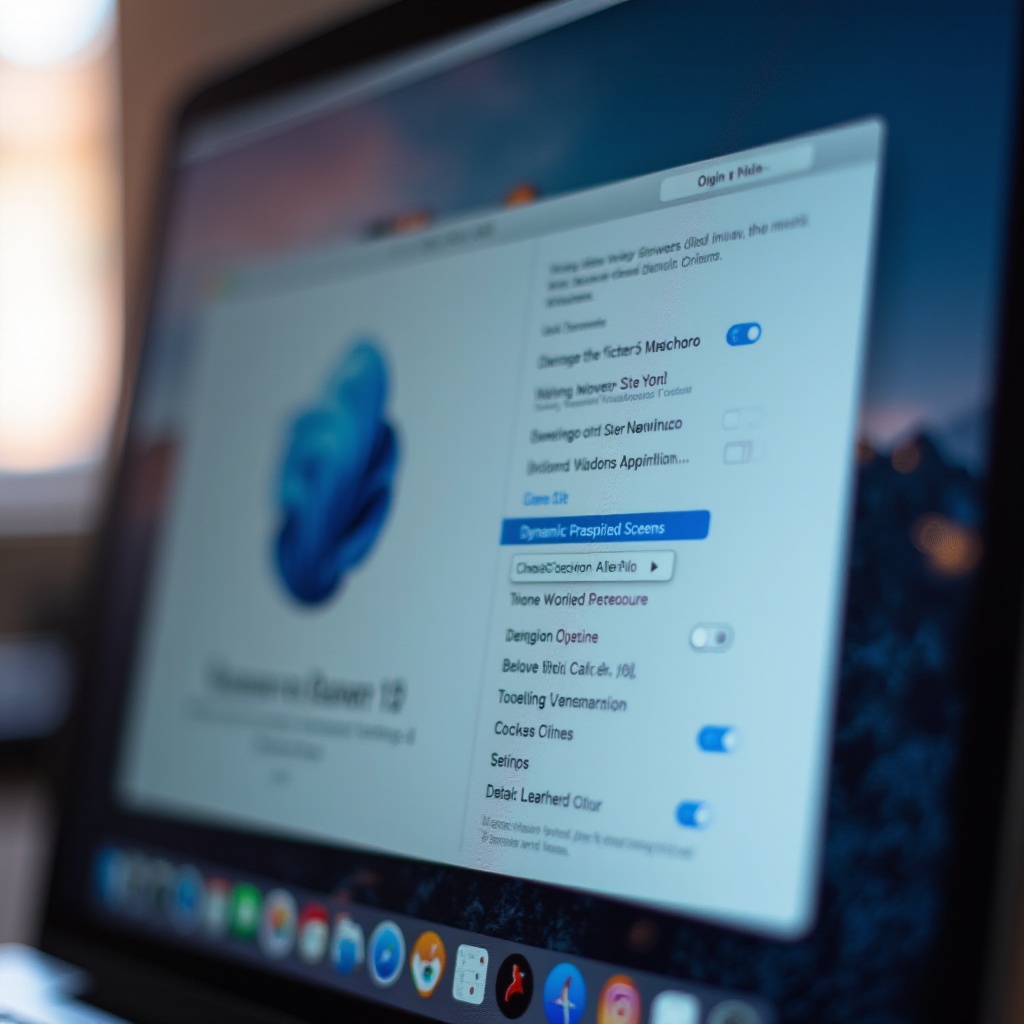
To customize your Mac, you first need to locate the screensaver settings. Fortunately, Mac’s interface ensures this is a straightforward task.
Accessing System Preferences
- Click on the Apple icon at the top-left of your screen.
- Select ‘System Preferences’ from the drop-down menu, a hub for all major settings adjustments.
Locating the Desktop & Screensaver Section
- Inside System Preferences, click on ‘Desktop & Screen Saver.
- Two tabs are present at the top: Desktop and Screen Saver. Switch to the ‘Screen Saver’ tab to explore the available options.
With the screensaver settings at your fingertips, you can now decide on the screensaver that matches your style.
Choosing and Applying a New Screensaver
Exploring screensaver options can be an exciting process that brightens up your desktop experience.
Exploring Default Screensaver Options
- Navigate through options on the left panel in the Screen Saver tab.
- Each selection presents a brief description to inform your choice.
Previewing and Selecting Your Choice
- Click on the screensaver you wish to preview and hit the ‘Preview’ button.
- Once content, apply it by selecting ‘Set.
Adjusting Screensaver Activation Time
- Below the screensaver options, there’s a ‘Start after’ dropdown to set activation timing.
You’ve chosen a screensaver. Now, it’s time to add a personal flair for a more tailored experience.
Personalizing Your Mac Screensaver
Make your screensaver a reflection of your distinct personality by adding custom features.
Using Photos from Your Library
- To use personal images, select ‘Photo Library’ from the screensaver settings.
- Choose specific albums or events to display cherished memories.
Adding Dynamic Wallpapers
For an immersive experience, consider dynamic wallpapers that shift with the time of day. Select ‘Dynamic’ under the Desktop tab to complement the screensaver visuals.
Creating a Customized Screensaver Show
- Opt for a slideshow screensaver by selecting ‘Slideshow’ in the options.
- Customize picture order and transition styles to make it uniquely yours.
Now, your Mac is a vibrant reflection of your taste, providing both beauty and personalization. If you encounter any issues, use the troubleshooting tips below.
Troubleshooting Common Screensaver Issues
Encountering issues can be frustrating, but they’re solvable with a few quick fixes.
Screensaver Not Activating
Check that the activation time is appropriate and ensure no applications, such as media players, are open that may prevent activation.
Addressing Performance Issues
If experiencing slowdowns, ensure macOS is updated. Switching to a less resource-intensive screensaver may also prove beneficial.
Solutions for Display Errors
For display issues, try resetting your screensaver settings or restarting your Mac to clear temporary glitches.
These solutions should keep your screensaver running smoothly.
Tips for Optimizing Screensaver Performance
Optimizing screensaver settings is key to maintaining an efficient and aesthetically pleasing desktop environment.
Balancing Visuals and Battery Life
If usually on battery power, choose screensavers that consume fewer resources to extend battery life. Consider reducing screen brightness as well.
Regularly Updating macOS
Regular macOS updates often include performance improvements that can enhance screensaver functionality. Ensure your system is always running the latest version.
Advanced Customization Tips
For more extensive customization, explore third-party screensaver applications. Just ensure they come from credible sources to avoid security risks.
With these tips, you can fully leverage your Mac screensaver’s potential, merging artistry with functionality.
Conclusion
Changing and customizing your Mac screensaver can add a personal touch to your workspace effortlessly. By exploring default options or using personal photos, you create a unique desktop that’s both aesthetically pleasing and functionally sound. By following this guide, you can enhance both the look and feel of your Mac, creating a seamless blend of elegance and efficiency. Enjoy a screensaver that truly caters to your personal or professional desires!
Frequently Asked Questions
How can I use photos for my Mac screensaver?
Access ‘Screen Saver,’ select ‘Photo Library,’ and pick albums to use personal images for your screensaver.
Why doesn’t my screensaver activate automatically?
Ensure the ‘Start after’ time isn’t too long and no foreground applications are preventing activation.
Can I download additional screensavers for my Mac?
Yes, third-party options are available. Download them, ensuring site credibility for security.