29 May 2026
Post by Gabriel
Introduction
MacBooks are known for their sleek design and performance, but they are not immune to water damage. Liquids can wreak havoc on electronic components, leading to costly repairs or a complete replacement. This guide aims to equip you with knowledge to recognize signs of water damage, conduct initial checks, and understand repair options, minimizing detrimental effects on your device.

Recognizing the Signs of Water Damage
Recognizing water damage early is crucial for preventing further damage. Knowing what to look for can save your MacBook from irreversible harm.
- Immediate Symptoms Post-Exposure:
- Screen Flickering: Unexpected changes in screen brightness or flickering may suggest moisture interference.
-
Power Instability: Difficulty turning on or experiencing unexpected shutdowns indicates possible water contact with internal circuitry.
-
Long-Term Effects and Delayed Symptoms:
- Corrosion: Check for green or brown deposits around ports, a clear sign of corrosion from water exposure.
- Keyboard and Trackpad Issues: Lagging or unresponsive keys and trackpads often result from internal moisture.
By identifying these symptoms early, you can take effective measures to prevent significant damage. But how can you confirm these signs? Let’s examine steps to conduct a thorough evaluation.

Steps to Check for Water Damage on Your MacBook
If you’re uncertain whether water exposure has occurred, performing a careful check can provide clarity.
- Visual Inspection Techniques:
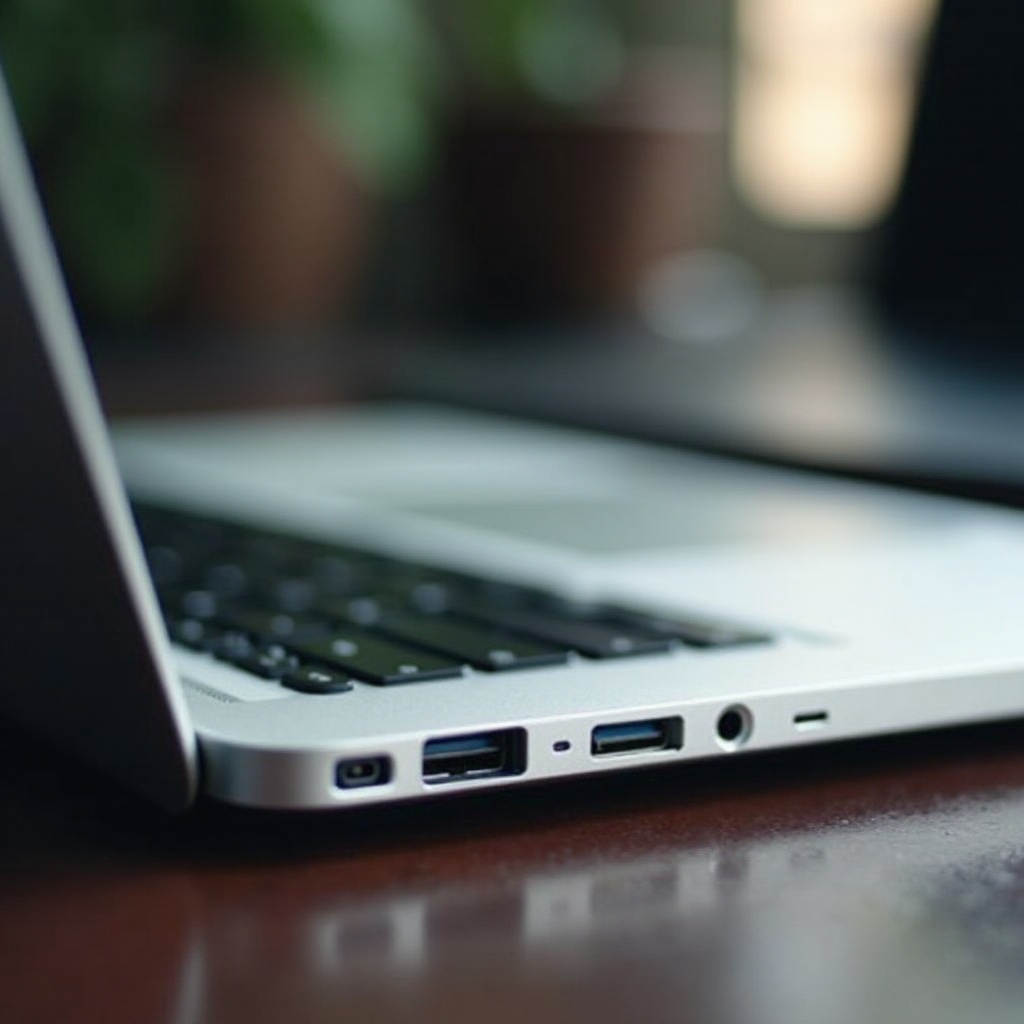
- Inspect Port Areas: Look for visible moisture, stains, or discoloration around your MacBook’s ports.
-
Check Battery Indicators: Some MacBooks have a liquid contact indicator that changes color when exposed to water; inspect this for any alteration.
-
Using MacBook Diagnostics:
- Engage Apple Diagnostics: Restart your MacBook while holding the D key to run system diagnostics. Record any error codes or reported issues.
Following these evaluation steps can help identify water damage. If damage is detected, respond swiftly to minimize further harm.
What to Do If You Suspect Water Damage
If any indicators of water damage emerge, quick and smart actions are essential to reduce risk.
- Immediate Actions to Minimize Damage:
- Turn It Off: Power down your MacBook immediately, and unplug all accessories.
- Dry Out the Exterior: Use a soft cloth to gently remove surface moisture.
-
Position for Drying: Place the MacBook in a ‘tent’ position with the keyboard facing downwards to maximize airflow across components.
-
Common Mistakes to Avoid:
- Do not attempt to power the device back on while wet.
- Avoid shaking or moving the device frequently while drying.
Taking these precautions helps prevent exacerbating any existing issues. If these measures do not resolve the damage, you may need to consider repair options.
Repair Options and Warranty Information
Understanding your repair and warranty options is crucial when water damage occurs.
- Professional Repair Services:
- Certified Apple Repair: Seek reputable Apple service providers for professional evaluation and repair.
-
Non-Warranty Repairs: If outside warranty, consider service centers specializing in Apple products for cost-effective solutions.
-
Apple’s Water Damage Policy:
- Apple’s standard warranty does not cover water damage. AppleCare+ may offer limited coverage with deductible fees.
Choosing between repair or replacement depends on damage severity and cost considerations. Regardless of the choice, preventive strategies can keep your device safe going forward.
Preventive Measures for MacBook Water Damage
Preventive measures can protect your MacBook from future water exposure.
- Protective Accessories:
- Invest in waterproof cases or sleeves specifically designed for MacBooks to safeguard against spills.
-
Keyboard covers can prevent spills from reaching internal components.
-
Daily Use Tips:
- Keep beverages and liquids away from your laptop.
- Use your MacBook in humidity-controlled environments to prevent prolonged exposure to moisture.
By implementing these strategies, you can increase the longevity and protection of your MacBook.
Conclusion
Early detection of water damage, along with prompt action and preventive measures, can make a significant difference in maintaining your MacBook’s health. Employ the steps outlined in this guide to not only identify and rectify water damage but also to prevent recurrent incidents.
Frequently Asked Questions
How can I tell if my MacBook has internal water damage?
Symptoms include error messages, strange sounds, and hardware malfunctions.
Is it safe to use a MacBook after it has been exposed to water?
Only use it after thorough drying and careful inspection to prevent damage.
Does AppleCare cover water damage for MacBooks?
AppleCare+ may cover water damage with specific conditions and fees.