12 Jun 2026
Post by Gabriel
Introduction
Resetting your iHome speaker is a straightforward solution to many common issues you might encounter, such as connectivity problems, sound disruptions, or software glitches. By mastering the reset process, you can significantly extend your device’s lifespan and ensure it remains in optimal condition. This guide provides you with clear, step-by-step instructions tailored to various iHome models so you can effortlessly maintain your speaker’s functionality.
Understanding Your iHome Speaker Model
It’s essential to know your iHome speaker model before you reset it. Each model has unique instructions, so identifying yours is crucial to avoid mistakes. You can usually find the model number on a label at the bottom or back of your speaker. This knowledge not only helps in the resetting process but also in maintaining your device over time.
Knowing when and why you might need to reset your speaker is equally important, so let’s next explore the scenarios that might warrant a reset.
When and Why You Might Need to Reset Your iHome Speaker
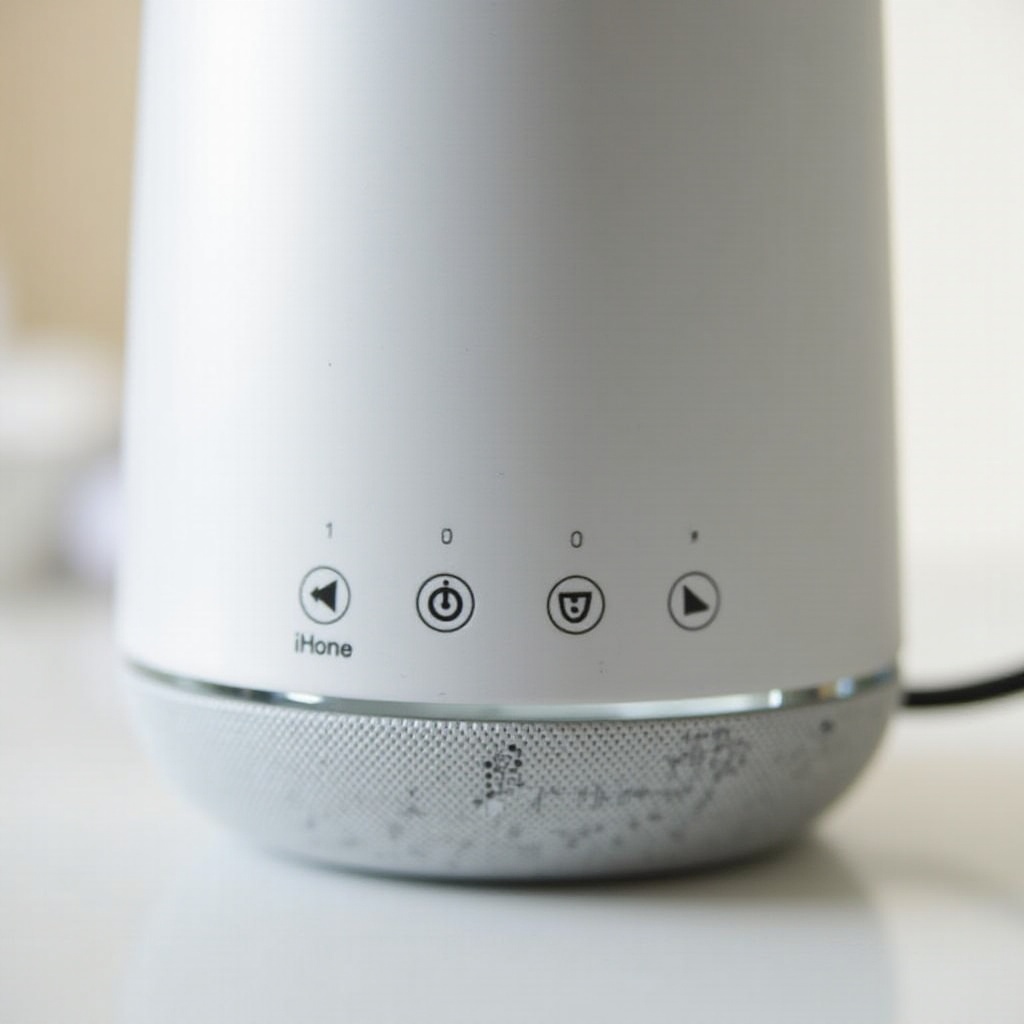
Resetting your iHome speaker can resolve several issues. You may experience frequent disconnections, audio distortions, or even unresponsive controls. Such problems are often due to minor software glitches that a reset can fix. Being proactive and recognizing these signs enables you to tackle and resolve issues quickly, ensuring uninterrupted device performance.
To make the reset process effective, preparation is key. Let’s move on to the necessary steps to prepare your speaker for a reset.
Preparing to Reset Your iHome Speaker
Preparation sets the stage for a successful reset. Ensure you have backed up any critical settings if your model supports this feature. Charging your speaker fully before attempting a reset is also important to prevent interruptions. These preparatory steps ensure a smooth and efficient reset process, helping to avoid complications.
Once prepared, you can proceed with the actual resetting process specific to your iHome speaker model.
Step-by-Step Guide to Resetting Your iHome Speaker
Different iHome models may have slightly varied reset instructions, yet they follow generally similar steps:
- General Reset Instructions:
- Power on your speaker.
- Locate the reset button, usually on the side or bottom.
-
Press and hold the reset button for about 10 seconds.
-
Soft Reset:
- Turn off the speaker.
-
Wait 30 seconds, then turn it back on. This can resolve minor software issues without affecting settings.
-
Hard Reset:
- Turn off the speaker, disconnect any cables.
- Press and hold the power or reset button for 10 seconds.
-
Release the button and power the speaker back on.
-
Model-Specific Instructions:
- Bluetooth iHome Speakers: Navigate to Bluetooth settings on your device, forget the iHome speaker. Press the Bluetooth button until pairing mode is activated.
- Wi-Fi iHome Speakers: Use the app to reset Wi-Fi configurations and follow the prompts to reconnect it to your network.
After resetting, you should verify if the problem is resolved and take further steps for functional assurance if necessary.
Troubleshooting Tips After Resetting
Upon completing a reset, it’s important to check the functionality of your speaker. Reconnect it to devices to ensure everything works well. Persisting problems could sometimes require a firmware update, which can be done through the iHome app or website. If the issue remains unresolved, you may need to contact iHome support for more comprehensive troubleshooting. Continuous maintenance further ensures that your device operates at peak performance.
Maintaining Your iHome Speaker for Long-Term Use
Proper maintenance can significantly improve the longevity of your iHome speaker. Regular software updates and keeping the device clean are vital practices. Use a soft cloth for cleaning and store the device securely. By following these habits, you are likely to prevent many common issues and keep your speaker in excellent working condition.
Conclusion
Resetting your iHome speaker might seem simple, but it’s an essential skill that helps restore peak functionality and addresses several performance issues. With consistent maintenance and appropriate troubleshooting efforts, you ensure a wonderful audio experience and extend the lifespan of your device. If ever in doubt, reaching out to iHome support can offer the assistance needed to overcome more complex problems.
Frequently Asked Questions
How often should I reset my iHome speaker?
Reset your iHome speaker only when issues arise, like connectivity problems or unresponsive controls.
Will resetting my iHome speaker delete all settings?
Soft resets usually keep your settings, while hard resets might erase custom configurations. Backup important settings if possible.
What should I do if resetting doesn’t resolve the issue?
If issues persist after resetting, check for firmware updates or contact iHome support for further troubleshooting.